

Short version: I will only ever email you from jason@ba-ws.com. I will only ever bill you through FreshBooks, and payments are through a credit card, check, or ACH (whichever you prefer). If you got an email from someone calling themselves Jason Garvey, or Bay Area Web Solutions, at a Gmail, Outlook, or Yahoo address — or asking for payment through Wise, Zelle, Venmo, or any other peer-to-peer app — it isn’t me. Delete it. Don’t reply. Don’t click anything. Don’t send anyone money.
If you’re a Bay Area Web Solutions client and you’re here because something felt off — you did the right thing by checking. Keep reading.
Please forward this page to anyone else in your company who handles email or pays invoices, and to your IT team or IT provider so they can block the scammer addresses at the server level.
What’s Happening
Multiple scammers are impersonating me and Bay Area Web Solutions to defraud small business owners.
They’re using my name, my photo, my company name, my logo — even building fake email signatures that look almost identical to mine. They send messages that read like normal follow-ups about your website or domain renewal.

jason.bayarea.wordpresspartner@gmail.com, not jason@ba-ws.com.The pitch usually sounds something like this:
- “Just wanted to follow up on your site.”
- “Your domain is coming up for renewal.”
- “I ran a quick audit and noticed a few issues.”
- “I can put together a focused update for you.”
A more aggressive variant uses fake urgency and invented authority:
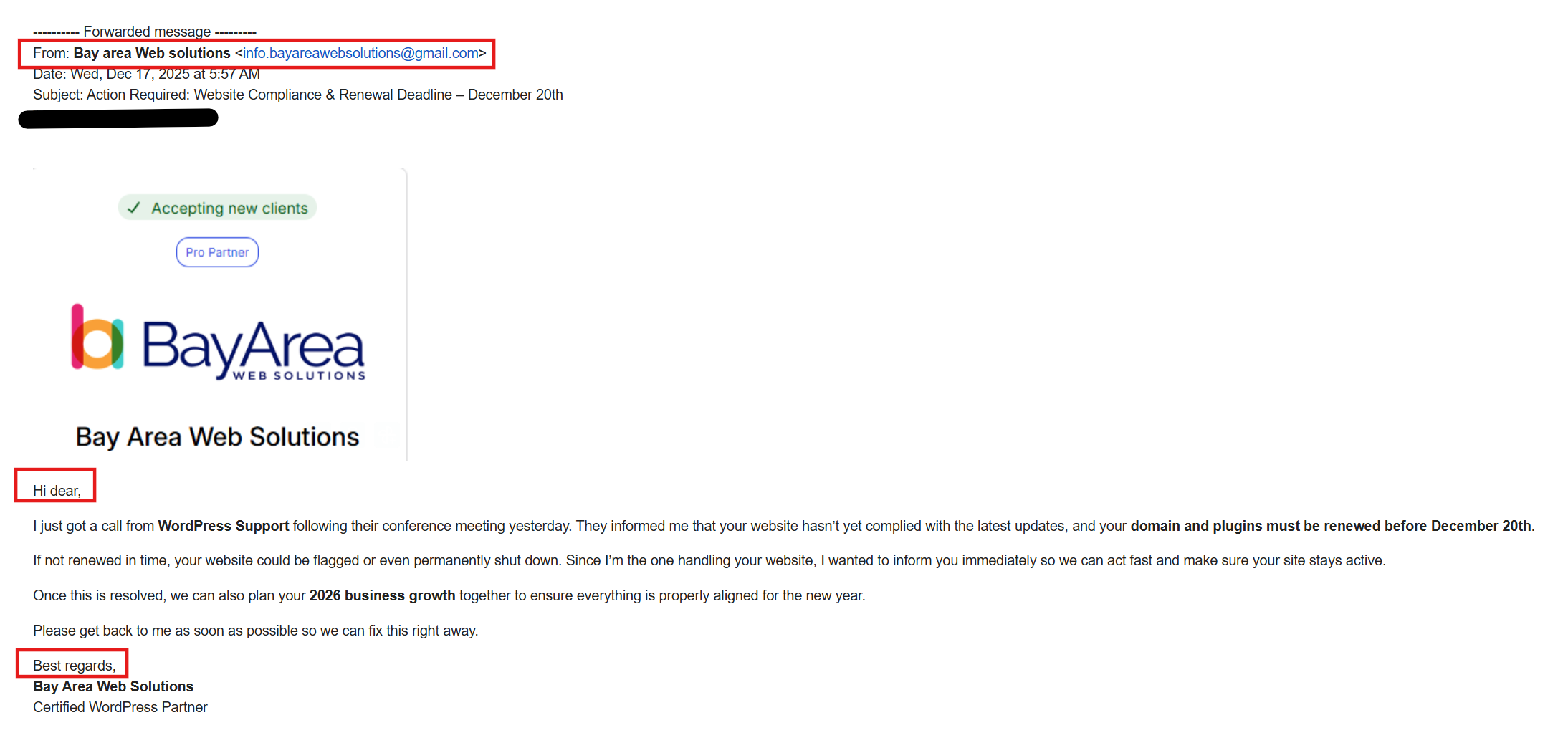
info.bayareawebsolutions@gmail.com. Note the manufactured urgency, the fake “call from WordPress Support” (WordPress Support doesn’t call anyone), and the generic “Hi dear,” opening.Both read like normal business email. That’s the point. They’re good enough to fool busy people who weren’t expecting the email but assume it must be legitimate because the writer seems to know their business and their website.
They aren’t legitimate. They’re scams.
How the Scam Works
Once someone replies, the scammer escalates carefully over several emails:
- A friendly check-in. Vague mention of website issues or an upcoming domain renewal.
- A fake “audit.” Usually a generic score like 45/100, with no real report attached, listing problems like “performance,” “mobile responsiveness,” “SEO structure,” and “DNS issues.”
- A scope of work. Typically $1,000 to $2,500 for “fixing” the made-up problems, or a fake “domain branding” project.
- Payment instructions. Almost always routed through Wise, Zelle, or a similar peer-to-peer service, sent to a personal Gmail address that has nothing to do with the supposed business.
- Fake completion reports. The scammer will sometimes send “before and after” screenshots showing the score has “improved” to keep the illusion alive.
- A second invoice. Once they’ve gotten away with one payment, they come back for more.
The end goal is one of two things: get you to send money for work that will never happen, or get you to hand over login credentials to your website, your domain registrar, your Google Business Profile, or your analytics — which they then either hold for ransom or sell.
How to Tell the Real Me From the Fake Me
The single most important rule: check the sender’s email address at the very top of the message.
Not the display name. Not the photo. The actual email address.
The real me will only email you from one address:
jason@ba-ws.com
That’s it. No Gmail. No Outlook. No Yahoo. No “@bayarea-websolutions” lookalike. No “wordpresspartner” or “info.bayareawebsolutions” or “supportteam” anything.
If the email is from any other address, it isn’t me — no matter how good the message reads, no matter whose photo is in the signature, no matter how much it sounds like something I’d say.
How I Actually Bill You
This is the other dead giveaway, and it’s just as important as the email address.
I only send invoices through FreshBooks. If you prefer, I’ll also accept a check in the mail or ACH bank transfer — whichever works best for you.
I will never ask you to:
- Pay through Wise, Zelle, Venmo, Cash App, or any other peer-to-peer payment app
- Send money to a personal Gmail address
- Wire funds to an account that isn’t in my business name
- Use cryptocurrency
- Pay any way other than the three above
If anyone claiming to be me asks for payment in any other way, it’s a scam — full stop. Don’t pay it. Call me at the number on my website to confirm.
Other Red Flags
Even if you don’t catch the sender address or the payment method right away, here’s what usually gives the scam away:
- A free-mail address (Gmail, Outlook, Yahoo) claiming to be from a business
- Urgency around domain renewal — “your domain is expiring soon, I can handle it for you”
- Fake authority — “WordPress Support called me,” “Google flagged your site,” “your hosting provider sent me a notice”
- A vague “audit” score with no link to a real report from a named tool
- Generic problems listed without specific URLs, specific metrics, or specific evidence
- Payment requested via Wise, Zelle, Venmo, or a personal Gmail address
- A generic greeting like “Hi dear,” or a sign-off that doesn’t match how the person actually writes — the fake emails impersonating me often use “Best, Jason” or “Best regards, Bay Area Web Solutions,” which I don’t use
- A made-up deadline (“renewal must happen before December 20th,” “your site will be shut down on…”)
The Specific Scammer Addresses Currently Impersonating Me
At least two different scammers are currently sending phishing emails using my name and Bay Area Web Solutions branding. The addresses they’re using:
jason.bayarea.wordpresspartner@gmail.com
info.bayareawebsolutions@gmail.com
Neither of those is me. Neither has ever been me. Block both, delete the emails, and move on.
A payment request connected to one of these scams was also routed through Wise to this personal Gmail address:
Oyekolaayomide2511@gmail.com
If you’ve received emails from any of these addresses, or sent money to any of them, take the steps below right away.
What to Do If You Got One of These Emails
Before anything else: if you replied to one of these scammers, gave them any information or access, or paid them any money — contact me right away at (650) 576-4277 or jason@ba-ws.com. I can help you contain the damage, check what’s been touched, and start locking things down. Don’t wait until you’ve worked through the steps below — call first, then we’ll do the rest together.
No judgment, ever. These scams are designed to fool smart, careful people. The faster I know, the more I can do to help you and to protect every other client.
If you only received it and didn’t reply:
- Don’t reply. Don’t click any links.
- Mark it as phishing inside your email client — this is one of the most effective things you can do, because it teaches your inbox filter and the email provider’s abuse team about the scammer. Here’s how, depending on what you use:
- Gmail (web or app): Open the email, click the three-dot menu in the top-right corner of the message, and choose Report phishing.
- Outlook / Microsoft 365: Open the email, click the Report button in the toolbar (or the three-dot menu in some versions), and choose Report phishing. On older Outlook desktop, use Home → Junk → Report as Phishing.
- Apple Mail (iPhone, iPad, Mac): Apple Mail doesn’t have a built-in phishing report button. Instead, forward the email as an attachment to
reportphishing@apwg.org(the global Anti-Phishing Working Group) and then delete it. - Yahoo Mail: Open the email, click the three-dot menu, and choose Report a phishing scam.
- If your email client doesn’t have a “Report phishing” option, use “Report spam” or “Mark as junk” instead. That’s the right fallback. Reporting it as something is always better than just deleting it.

- Also report the scammer’s Gmail addresses directly to Google. This goes to Google’s abuse team and helps get the accounts shut down faster:
- Report the Gmail account: support.google.com/mail/contact/abuse
- Report any phishing links the email contained: safebrowsing.google.com/safebrowsing/report_phish
- Forward the email to your IT team or IT provider and ask them to blacklist both scammer addresses at the server level for your whole organization.
- Forward this page to anyone else in your company who handles email or pays invoices.
- Once you’ve reported it, delete the email.
If you replied but didn’t send money or share credentials:
- Let me know right away — call (650) 576-4277 or email jason@ba-ws.com. Even if you think nothing sensitive was shared, I want to review what was discussed so we can make sure. The scammer may have learned more about your setup than you realize.
- Stop responding to the scammer immediately.
- Do all the steps from the “didn’t reply” section above (report as phishing, report to Google, alert IT, forward to your team).
If you sent money:
- Contact your bank or credit card company immediately and dispute the charge as fraud. The sooner you call, the better the odds of recovering the funds — chargeback windows are short.
- Let me know — call (650) 576-4277 or email jason@ba-ws.com. I can help you figure out exactly what was paid for, whether any access was given along with the payment, and what to check next. The more I know, the better I can protect every other client too.
- File a report at the FBI’s Internet Crime Complaint Center: ic3.gov
- Report the scammer’s Gmail addresses to Google: support.google.com/mail/contact/abuse
- Report any phishing links to Google Safe Browsing: safebrowsing.google.com/safebrowsing/report_phish
- If a fake website is involved that’s showing up in search results, report it to Google’s search spam team: search.google.com/search-console/report-spam
If you handed over login credentials to your website, domain, Google Business Profile, or any other account:
This is the most time-sensitive situation. The faster we move, the less damage the scammer can do.
- Call me immediately at (650) 576-4277, or email jason@ba-ws.com. Don’t wait. I can start locking accounts down on my end while you handle the steps below. If it’s after hours, leave a voicemail and send the email — I’ll get back to you as fast as I can.
- Change the password on the affected account right away.
- Turn on two-factor authentication if it isn’t already on.
- Check the account for any unauthorized changes — new users added, contact emails changed, recovery phone numbers swapped, billing details edited.
How to Help Shut This Down
If you’ve received one of these emails, the three highest-impact things you can do are:
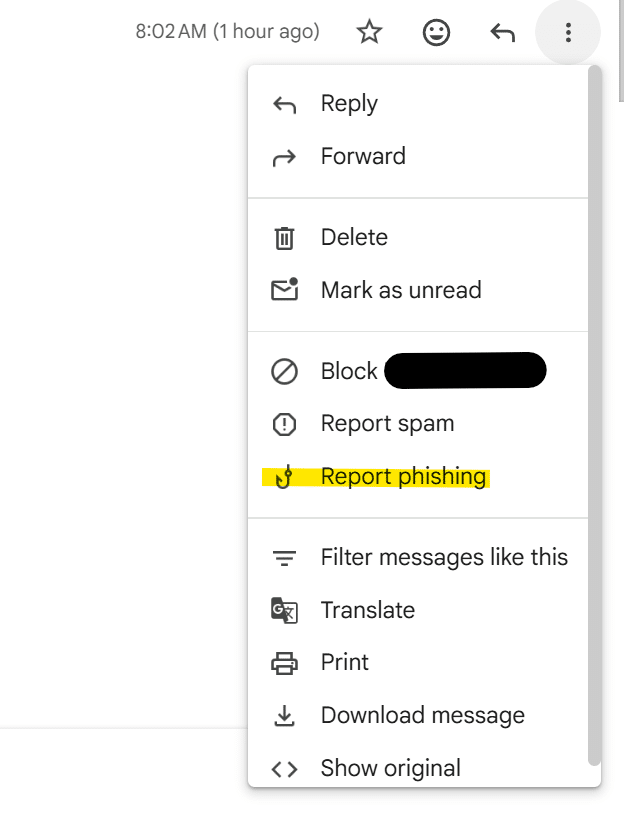
- Report it as phishing inside your email client. Use the steps in the previous section — Gmail’s “Report phishing,” Outlook’s Report button, Apple Mail forward-to-APWG, or “Report spam” as a fallback. The more abuse reports filed against the scammer accounts, the faster Google and Microsoft shut them down.
- Send the email to your IT person or IT company and ask them to block both
jason.bayarea.wordpresspartner@gmail.comandinfo.bayareawebsolutions@gmail.comat the server level for your entire organization. That protects everyone in your company, not just whoever the scammer happened to guess at first. - Forward this page to your team. Anyone who handles email, pays invoices, or has access to your website needs to see it. Send them the link:
bayarea-websolutions.com/email-scams
A Note to Anyone Who Isn’t a BAWS Client
If you found this page by searching something like “is this email from my web designer real” or “fake domain renewal scam” — this same playbook is being run against thousands of small businesses by hundreds of scammers. The specifics change, but the pattern is identical:
- A friendly check-in from a Gmail address pretending to be your web developer, IT person, or agency
- An invented audit, domain renewal deadline, or “WordPress Support” notice
- A scope of work for somewhere between $1,000 and $3,000
- Payment requested through a peer-to-peer app to a personal Gmail address
If that’s what’s happening to you, the rule is the same: call your real web person at the phone number you already have for them. Don’t use any number or email address from the suspicious message. Verify through a channel you already trust.
Bottom Line
I will only ever email you from jason@ba-ws.com. I will only ever bill you through FreshBooks, check, or ACH. Anything else claiming to be me is a scam.
If you’re ever unsure, the fastest way to check is to call me at the phone number on my website. Thirty seconds on the phone beats $1,200 sent to a scammer every single time.
Thanks for staying alert. The more we talk about this stuff openly, the harder it gets for the scammers to make it work.
— Jason
Bay Area Web Solutions

